How to Force a Fresh Version of a Web Page
Updated: September 28, 2026 • By Lena Shore
Filed under: Web Development
How to Force a Fresh Version of a Web Page
Have you ever made changes to a website, refreshed the page, and… nothing changed?
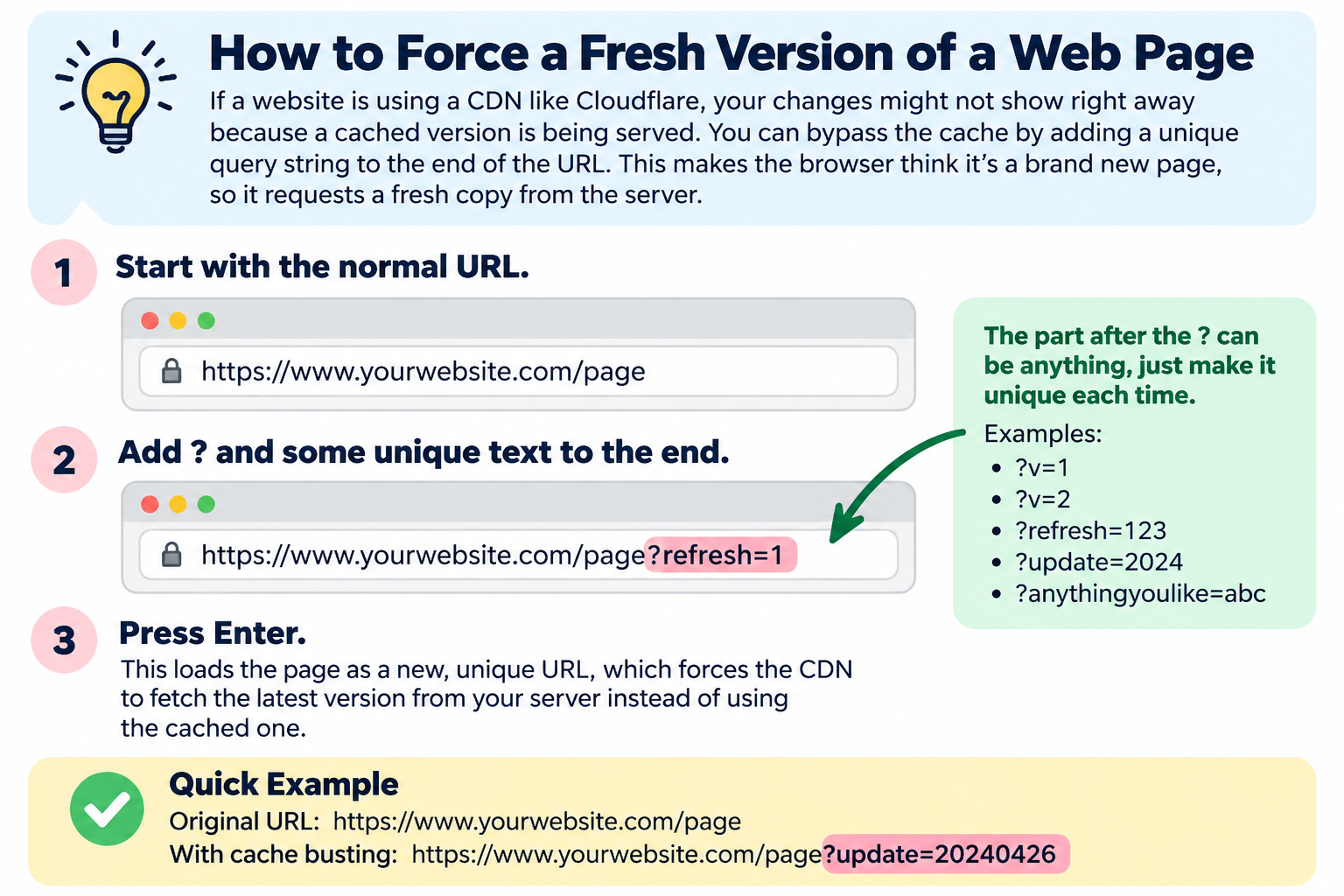
Sometimes the problem isn’t the website at all. If the site uses a CDN or caching service such as Cloudflare, you may still be seeing a cached version of the page rather than the latest version from the server.
If you don’t have access to clear the website’s cache, there’s a simple trick that can often help: add a unique query string to the end of the URL.
How to Bypass the Cached Page
Start with the normal URL:
https://www.yourwebsite.com/page
At the end of the URL, add a question mark followed by something unique:
https://www.yourwebsite.com/page?refresh=1
Then press Enter.
The part after the question mark is called a query string. Because the URL is now different, many caching systems will treat it as a new request instead of serving the copy they already have cached.
You can use almost anything after the question mark:
?v=1
?v=2
?refresh=123
?update=20260928
The important part is that you change it when you need another fresh request. If you already tried ?refresh=1, for example, try ?refresh=2.
A Quick Example
If the page you’re trying to view is:
https://www.yourwebsite.com/about
Try:
https://www.yourwebsite.com/about?refresh=1
If you need to check it again after another update:
https://www.yourwebsite.com/about?refresh=2
One Important Caveat
This is commonly called cache busting, and it can be a very handy way to check a newly updated page. However, it isn’t the same thing as actually clearing the website or CDN cache, and it won’t bypass every caching configuration.
If it works, though, it can save you from waiting for a cached page to expire just to see a change that’s already live on the website.
